Marking inspection
The camera is positioned after the printer or laser marker. The engiAI system reads the printed text directly from the video stream: it extracts the text, which passes through the area in segments, compares it to a reference or list, saves each marking in a database, and then transmits the results over the network – to a web browser, in JSON format, and to a TCP controller.
How it works in practice
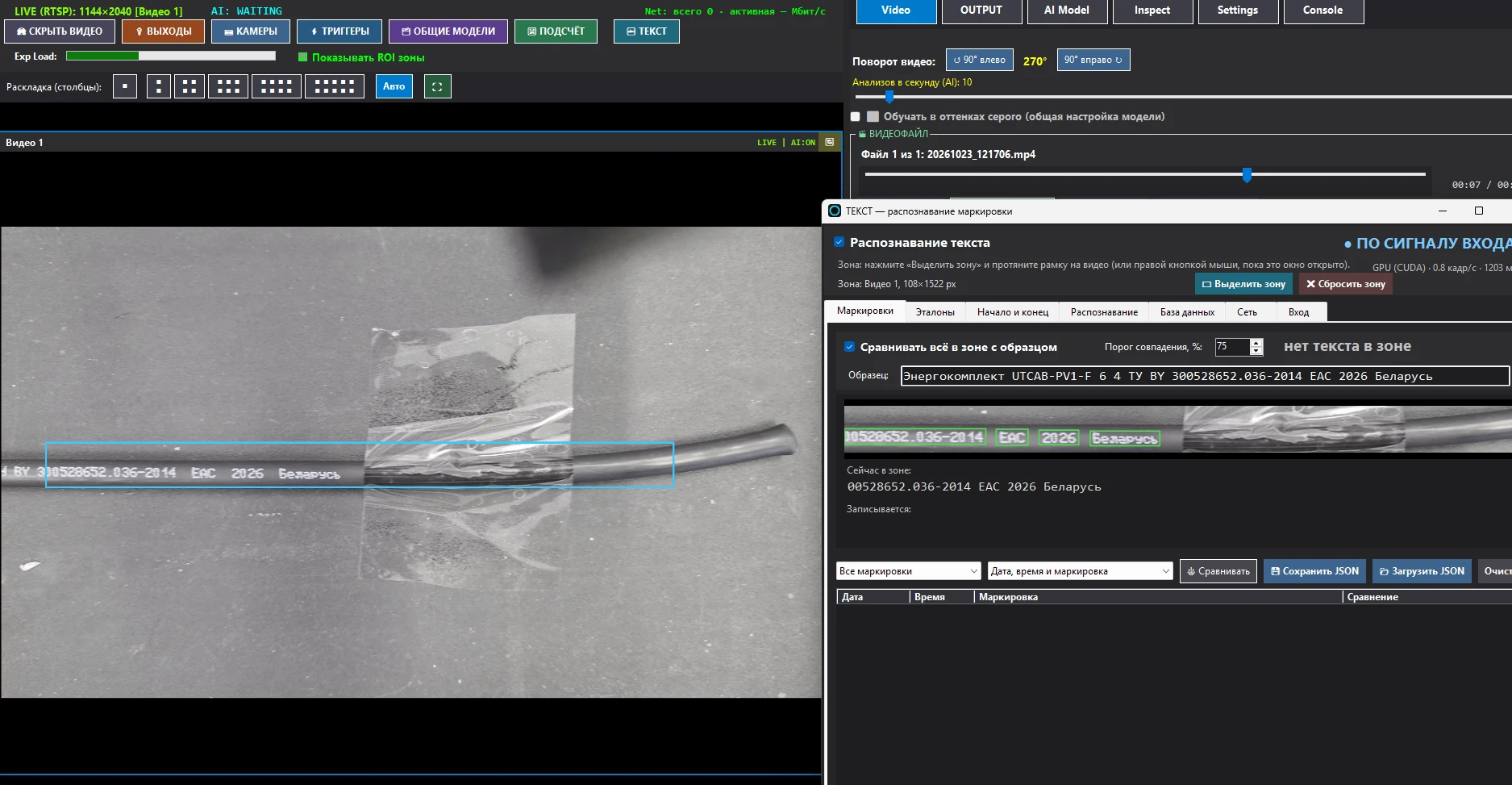
The "TEXT" button is located in the top row of the main window "engiAI", next to the EXIT, CAMERA, TRIGGER, GENERAL MODELS, and COUNT buttons. It opens the "TEXT - marking recognition" window. The window can be kept open on top of the video: the area in the frame is visible as long as the window is open or recognition is enabled.
In the header of the window, there are three common elements for all tabs:
- Text recognition is the main switch. As long as the checkbox is unchecked, text recognition will not function and will not burden the program.
- ▭ Define the area – click and drag the frame over the video using any mouse button. While the window is open, you can drag the frame and remove it with the right mouse button without clicking. ✖ Clear the area – removes the area.
- Right-hand side status: WAITING, RECORDING, PAUSE, or ON INPUT SIGNAL. Below this, the information displayed includes (GPU CUDA or processor), the number of frames per second being read, and the number of milliseconds taken for each frame.
The "marking" tab: the result and comparison with the sample
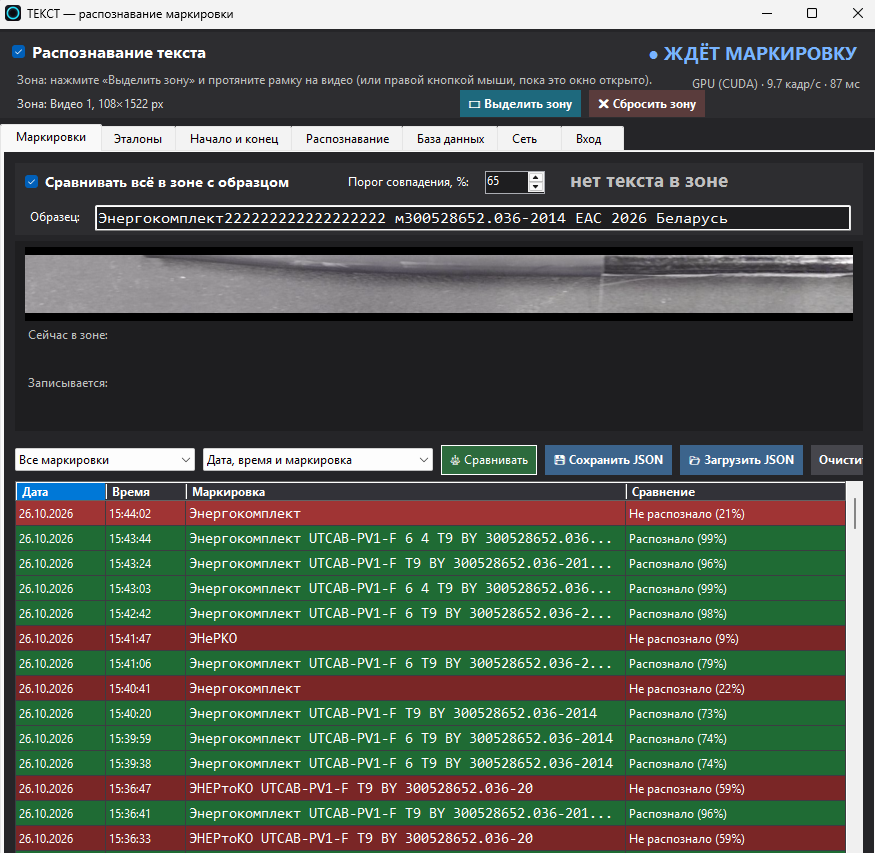
This is the operator's working tab. At the top, you'll find the "Compare everything in the area with the sample" mode:

How the phrase analysis works on the conveyor:
- The recording starts at the beginning of the phrase. If the recording is started in the middle of a text, the remainder of the text is skipped – the program waits for the next beginning.
- Each frame is placed in its correct position within the sample, and each letter receives "votes" from all the frames where it is visible. The resulting text is the one that is read most frequently. Random errors in a single frame (e.g., a letter partially cut off or obscured by a glare) are corrected by neighboring frames – the more frames considered, the more "votes" there are, and the more accurate the final result.
- The result is outputted as soon as the entire phrase has passed through the recognition zone, or if no new characters are detected for a period of time specified in the "Recognition" tab (meaning the conveyor has stopped and the zone is empty). After the result is output, the program waits for the beginning of the next phrase; phrases that follow each other closely are recorded separately.
- The program determines the direction of movement itself or takes it from the "Source of text" setting.
While the phrase is being processed, on the right side of the screen, you can see that 40 out of 64 characters have been recognized, and in the "Recorded" line, you'll see the percentage of matches and the text that has been identified. After the processing is complete, either "73% - MATCHED" or "73% - NOT MATCHED" is displayed, or either "73% - MATCHED" or "73% - NOT MATCHED" is displayed. This result is also shown prominently on top of the video.
Without the "Compare everything within the sample area" checkbox, the process works sequentially: any marking is written from beginning to end according to the rules of the "Beginning and End" tab, and if necessary, it is compared to a reference list.
Below the list is the control:
- All markings / Only the latest – how many to display here and send to the browser.
- Date, time, and marking / Only marking – This specifies what information to send to the browser and save in JSON format.
- ⚖ Compare — Compare each finished marking with the reference markings.
- 💾 Save JSON, 📂 Upload JSON (uploaded markings become references), Clear list – removes rows from the screen and from the browser, but they remain in the database.
The "Reference" tab – a list of correct markings
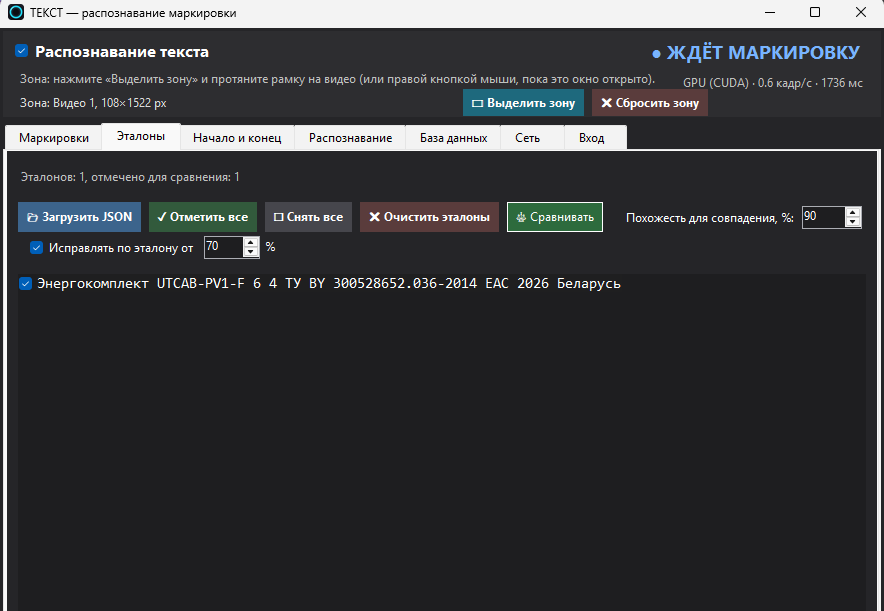
The reference is needed when there are multiple different markings on the line (different sections, batches, customers), and each one needs to be found in the list.
- 📂 Load JSON – a list from a file: our JSON, an array of strings, objects with a "text" field, or simply text per line in the marking. Duplicates are removed.
- ✓ Mark all, ☐ Unmark all, checkmark next to each row – to compare with which references. ✖ Clear reference – to remove the list.
- Similarity for matching, % – 100 means character-for-character match (excluding spaces and case). Lower values indicate errors in typing or reading.
- Correct according to the standard, from … % – if the reading matches the reference, the marking is recorded using the standard text (the original reading remains in the log).
The "Beginning and End" tab – where one marking ends
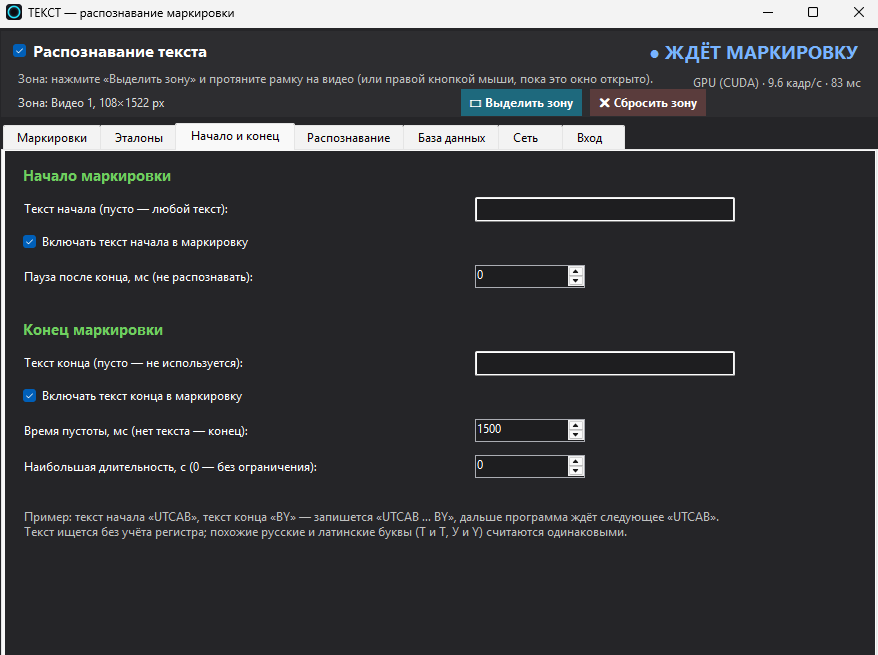
These rules operate in a sequential merging mode (without a template), where the program determines the start and end of the marking:
- Text Start – The recording begins when this text is read within the zone (e.g., UTCAB). Blank – from any text. If the text appears in a circular pattern, the second appearance of the text start marks the end of the marking. Include text start in marking – leave it in the result.
- Pause after completion, ms – do not record anything after the marking is finished.
- End of text – the marking ends when this text is read (e.g., BY or 2026).
- Time to blank, ms – if there is no text in the area, the marking is complete and saved.
- Maximum duration, with – for continuous writing without spaces: each interval of this length represents a separate marking. 0 – no limit.
Example: "UTCAB" start, "BY" end – the result will be "UTCAB … BY", and the program will wait for the next "UTCAB". The comparison is case-insensitive, and similar Russian and Latin letters are considered the same.
"Recognition" section: zone, turn, models
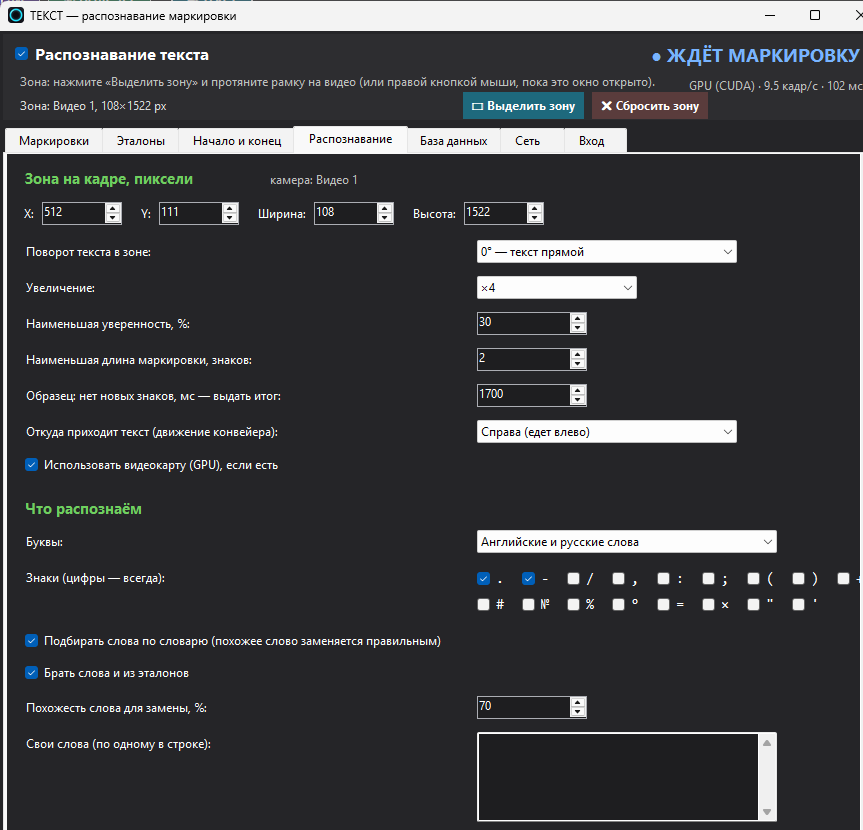
- Area within the frame, pixels – X, Y, width, and height of the area within the original frame: to precisely define the area without using the mouse.
- Rotating the text within the zone – This refers to rotating the zone itself so that the text appears straight. The text flows from top to bottom ("90° counter-clockwise") or from bottom to top ("90° clockwise"). You can rotate the video itself on the "Video" tab ("Rotate video").
- Increasing the size – small text is easier to read if the area is enlarged; "Auto" automatically adjusts the size.
- Least Confidence, % – lines with the lowest confidence scores are discarded (e.g., blurry areas, letter edges).
- The shortest marking length, number of characters – shorter results are not saved.
- Sample: No new characters detected, MS - waiting for result - How long to wait if no new characters are detected (conveyor stopped, zone empty, text unreadable)? Once the result is available, a new analysis begins.
- Where the text originates – from which side of the zone the new text appears. "Auto" determines this based on the frames, and using the "paste" function is more reliable.
- Using a graphics card (GPU)— with NVIDIA and CUDA, the reading speed is significantly faster.
- Letters and Symbols – what can be in the marking: English and Russian words, only English words, or any symbols; numbers and spaces – always, symbols (e.g., period, hyphen, backslash, number) are marked with checkmarks. The model selects a symbol only from the allowed ones – extraneous symbols do not appear, and similar ones are recognized more accurately.
- Replace words based on a dictionary – the recognized word (3 or more letters, not a number or code), which is similar to a word from the dictionary to at least a specified percentage, is replaced with the correct word. The dictionary contains its own words (one word per line), and, optionally, words from a reference dictionary.
Below, on this tab, you can choose from the following models: "Line Search" (v3 - fast, v5 server - more accurate for graphics cards) and "Text Reading" (Cyrillic, Latin, and numbers; only Latin and numbers; Latin for European languages; precise server model; or two models simultaneously - both read the line, and the more reliable option is chosen). The missing model can be downloaded using the "⬇ Download" button. The "⚖ Compare models in the current zone" button runs the latest zone data through all the options, allowing you to immediately see which model reads your marking most accurately and how many milliseconds it takes.
"Database" section: all markings are stored here.
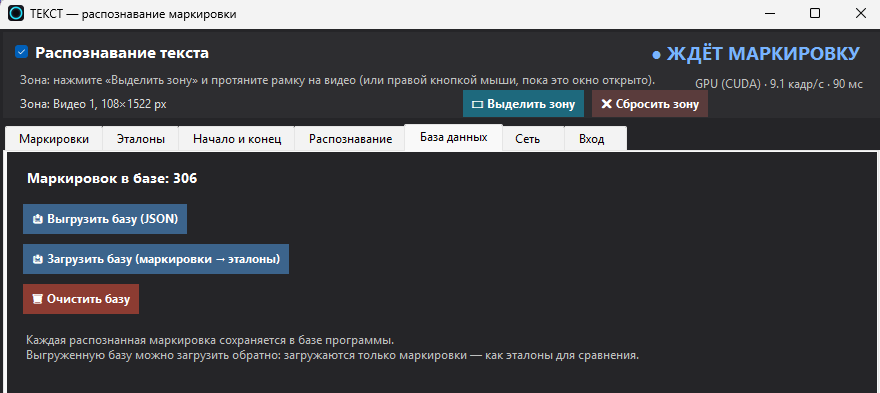
Each recognized marking is stored in the program's database, along with the date, time, camera, text, and comparison result – regardless of what is displayed in the on-screen list.
- 📤 Export the database (JSON) – save all marking data in a file for reporting or transfer to a record-keeping system.
- 📥 Download the database (marking → reference) – Only the "marking" texts are extracted from the export, and these become the "reference" texts. This verified change can then be used as a model for future changes.
- 🗑 Clear the database – delete all entries.
The "Network" tab – the result in the browser and in JSON format.
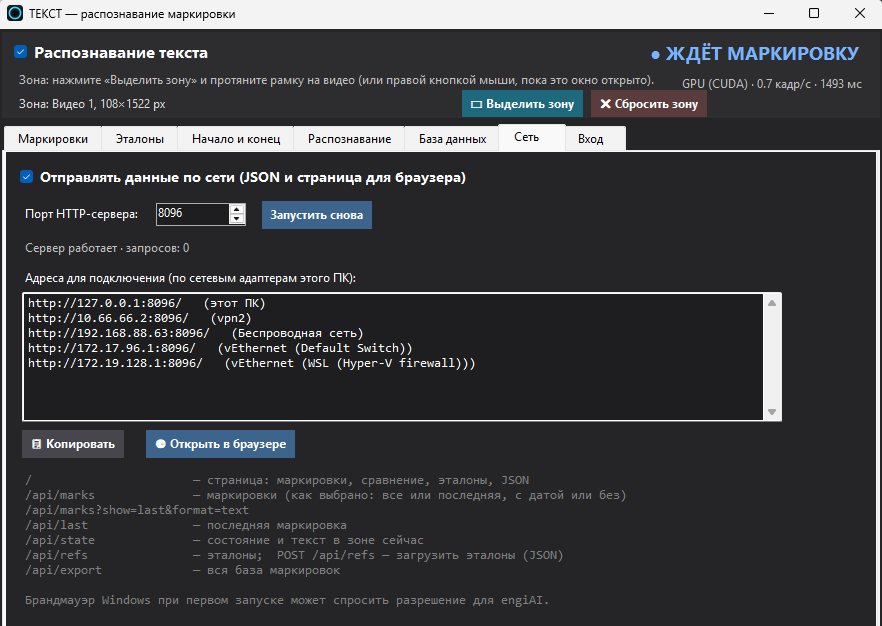
Check the box Send data over the network – the engiAI application will launch an HTTP server (default port 8096). Any computer or tablet on the network opens a page with marking, comparison, and reference using a regular browser; no installation is required. The 📋 Copy and 🌐 Open in browser buttons retrieve the address from the list.
| Address | What is being sent |
|---|---|
| / | page: marking, comparison, reference, JSON |
| /api/marks | marking – either all or the most recent, with or without a date (as selected in the window) |
| /api/marks?show=last&format=text | the most recent marking in plain text |
| /api/last | the most recent marking |
| /api/state | the current status and text in the zone |
| /api/refs | reference; POST /api/refs — upload reference (JSON) |
| /api/export | the entire marking database |
When you first start Windows Firewall, it may ask for permission to allow access for engiAI – grant access to the necessary networks.
The "Input" tab – a screenshot triggered by the controller's signal
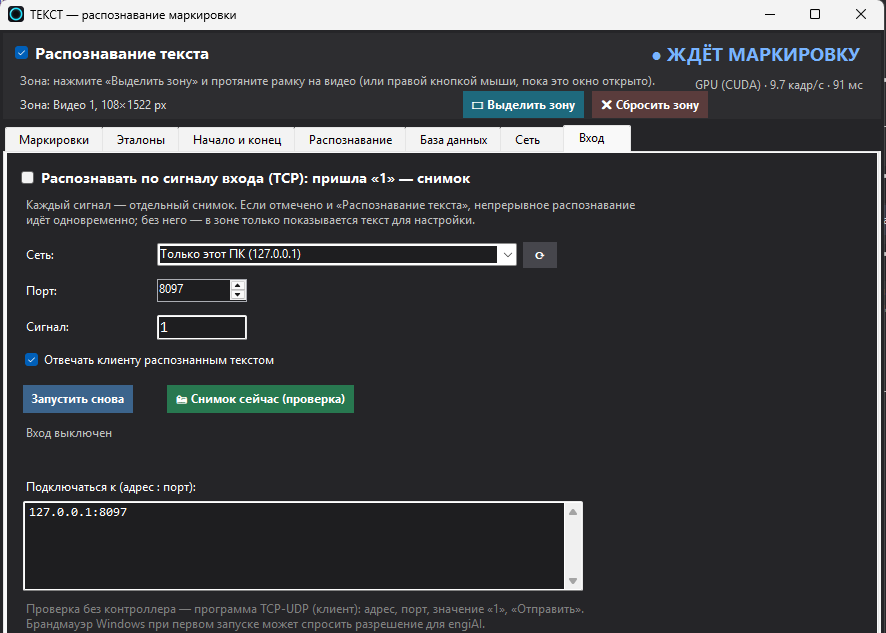
When the product arrives in front of the camera upon receiving a signal (sensor, PLC, robot), mark Recognize by input signal (TCP). The engiAI system opens the TCP server; each signal triggers a single image capture of the area: the text is recognized, compared, and saved to the database, just as it would be in continuous mode.
- Network – on which network adapter to expect the signal ("All networks" – on any); you can manually enter the IP address. Port – by default 8097.
- Signal – what to consider as the command. By default, 1: either the text ("1", "1\r\n") or the byte 0x01.
- Responding to the client with recognized text – the response includes a string with marking, and when comparing, it includes either OK or NG separated by a tab; NO TEXT – the text was not found, ERROR … – there is no area or frame.
- 📸 Snapshot now (verification) – This is equivalent to a signal, but triggered from a button. It can be verified without a controller using the TCP-UDP (client) program: address, port, value "1", "Send".
Simultaneous login and continuous recognition: if "Text Recognition" is checked, the program continues to monitor the conveyor, and for each signal, it also takes a snapshot.